
How to use HuntME
Find logistics services, connect with providers, or list your own service. Here are the basics to get you started.
For buyers · 01
Find the right service
Start with what your business needs, then narrow down the options.
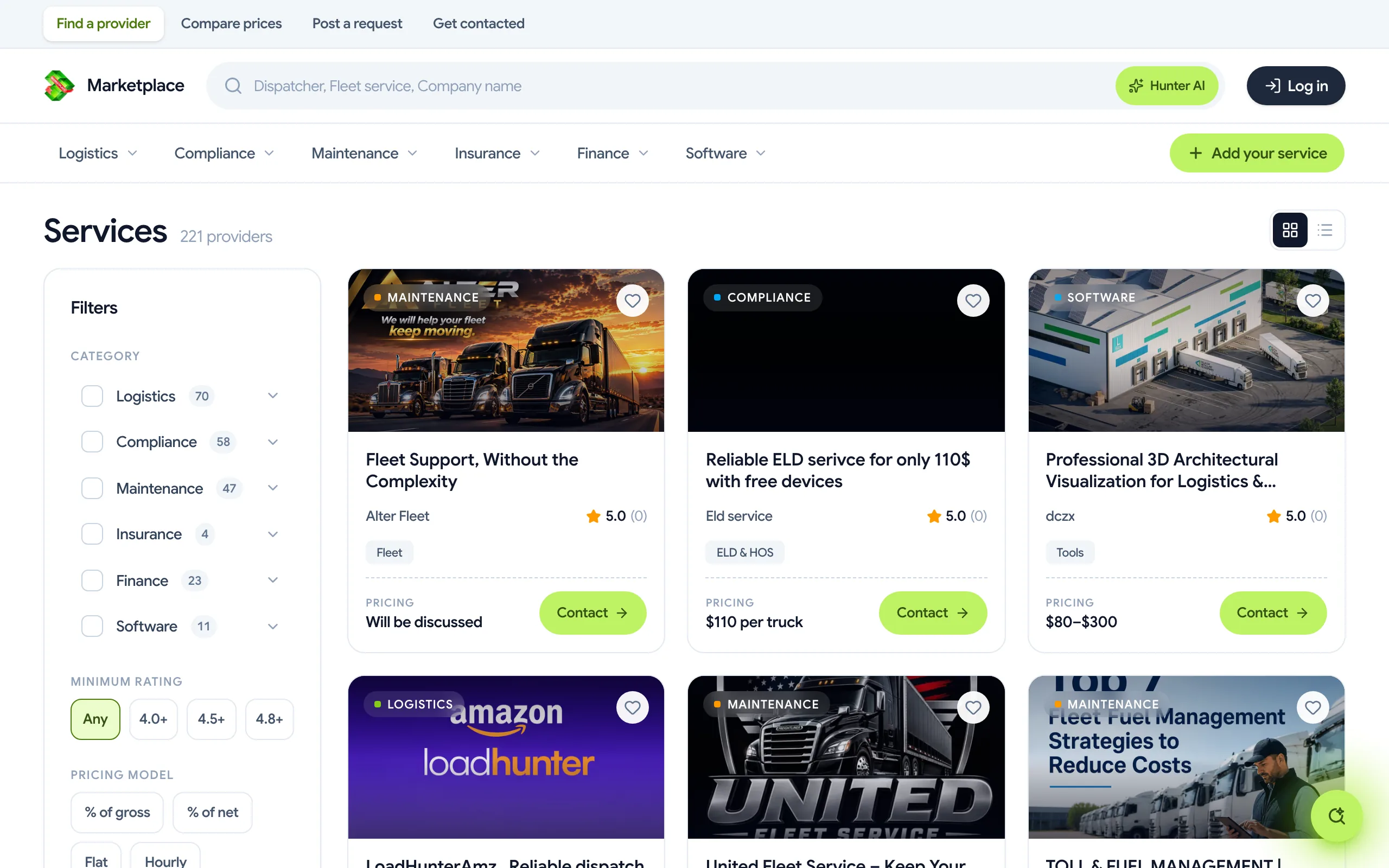
- Open Browse services and choose a category, such as compliance, insurance, or maintenance.
- Use the available filters to narrow your results by service type and location.
- Open a listing to read what is included, its pricing, and where the provider works.
For buyers · 02
Search in your own words
Hunter AI helps you search trucking services using everyday language.
- Open Hunter AI from the catalog or use the link below.
- Describe the service you need. Include your location and any budget or timing preferences.
- Select Ask Hunter, then open a result to check the details with the provider.
Try: “I need mobile truck repair in Dallas today.”
Try Hunter AI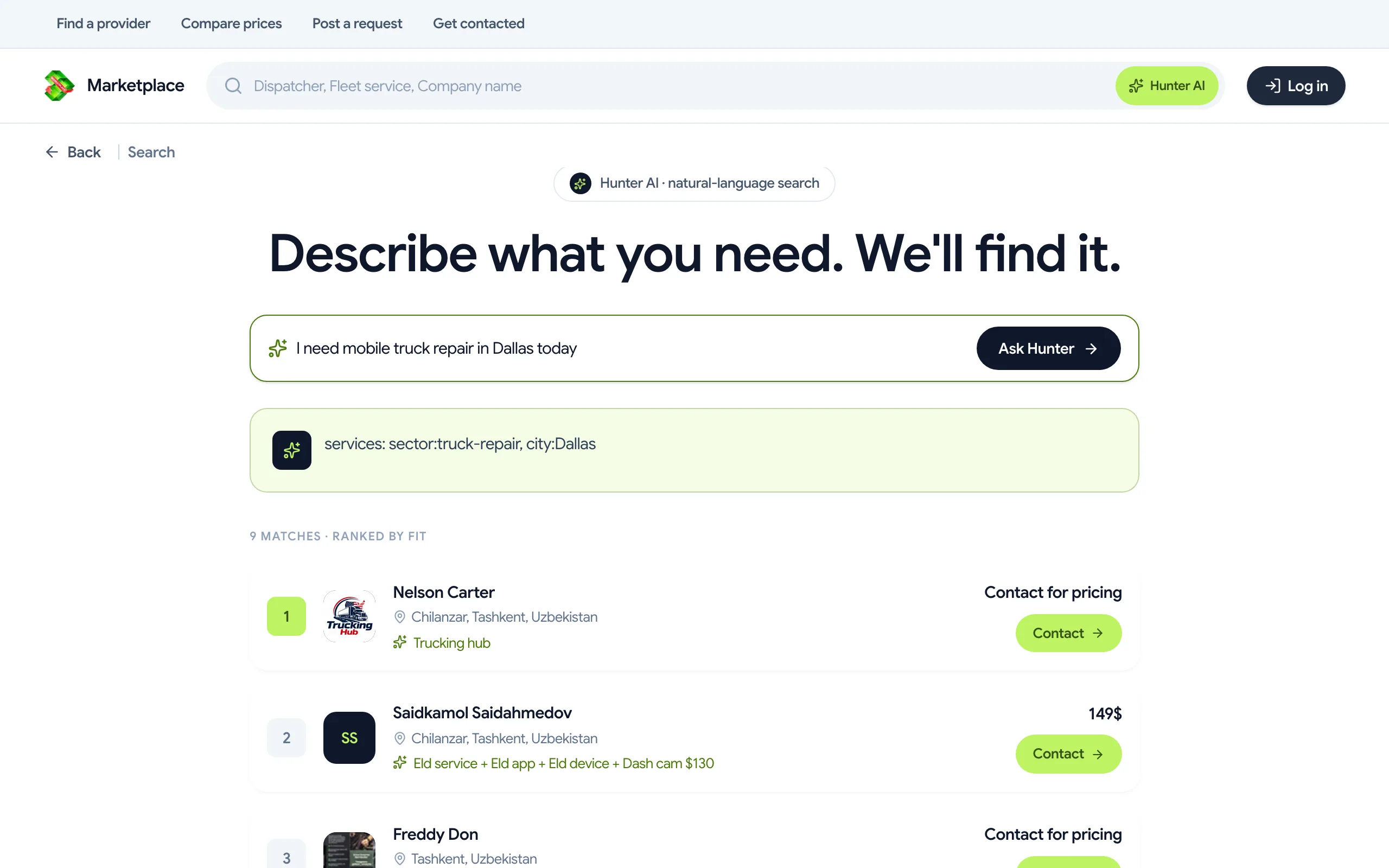
For buyers · 03
Review and contact a provider
Check the offer and the business behind it before reaching out.
- Read the service description, pricing, and location. Open the provider’s company profile to see their other listings.
- Sign in and select Message seller (free) to start a conversation on HuntME.
- Prefer direct contact? Select Reveal email or Reveal phone to see the available contact details.
Messaging and contact reveals are free. Confirm the scope, price, and terms directly with the provider.
Open messages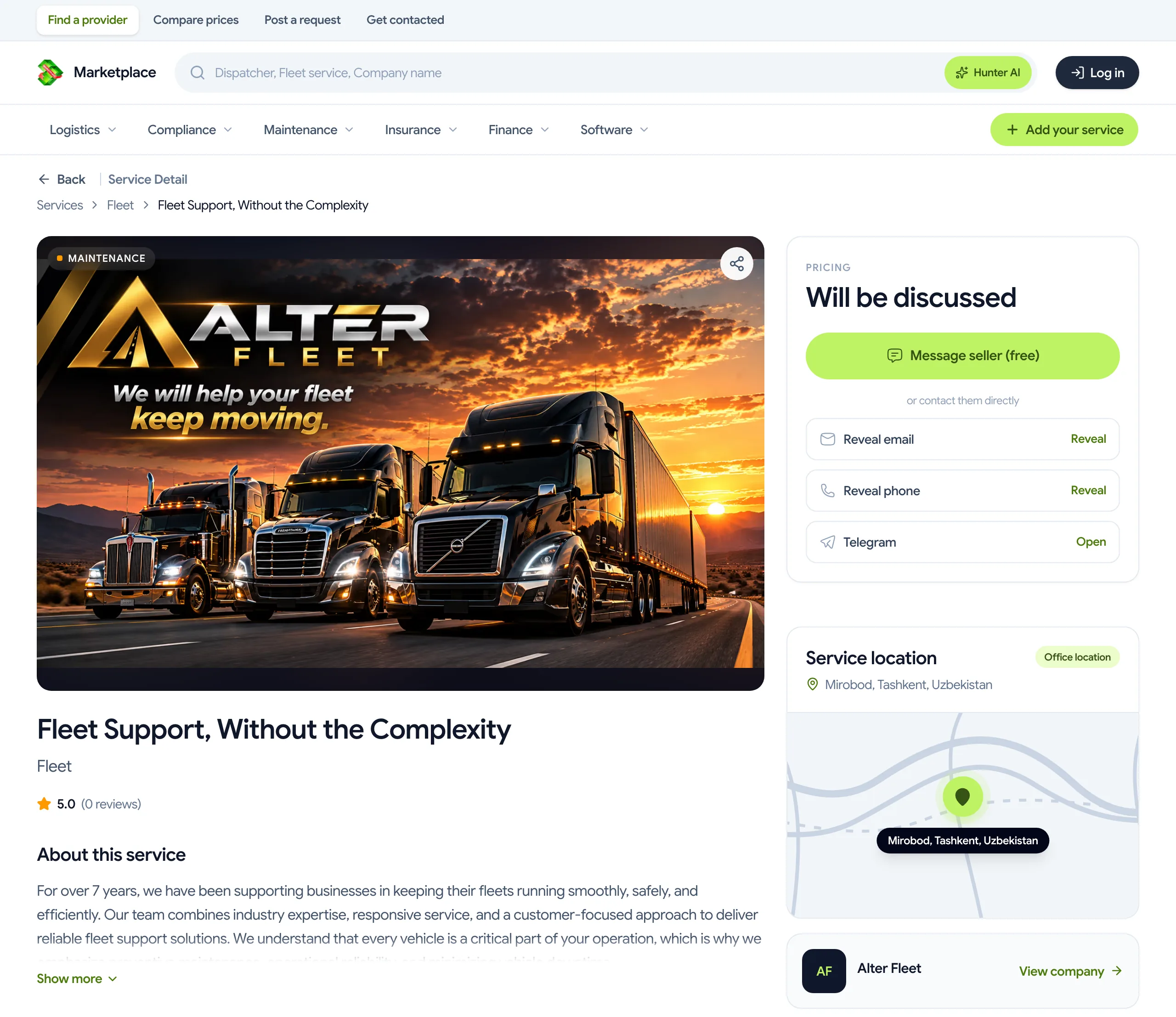
For sellers · 04
Post your first service
Use the listing wizard to explain what you offer and how customers can reach you.
- Sign in with a seller account and open Post a service. Follow any seller access prompts.
- Choose a category, then add your title, description, location, pricing, media, and contact details.
- At Review & create, check the preview and the credit cost to publish, then select Create listing. Your listing is saved as Unpaid until you publish it from My Services.
Keep phone numbers and email addresses in the contact fields so your description stays focused on the service.
Post a service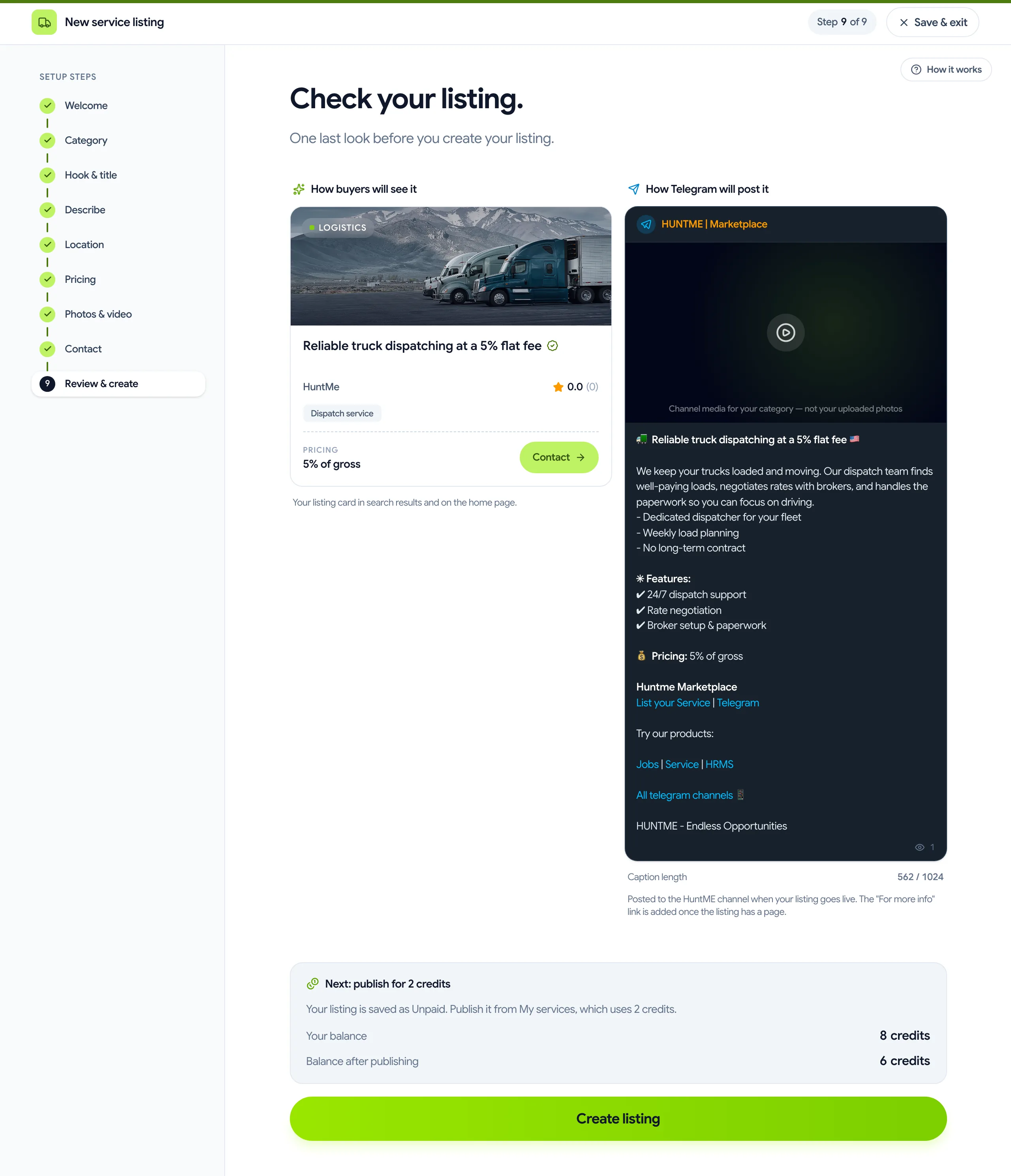
For sellers · 05
Keep your listings up to date
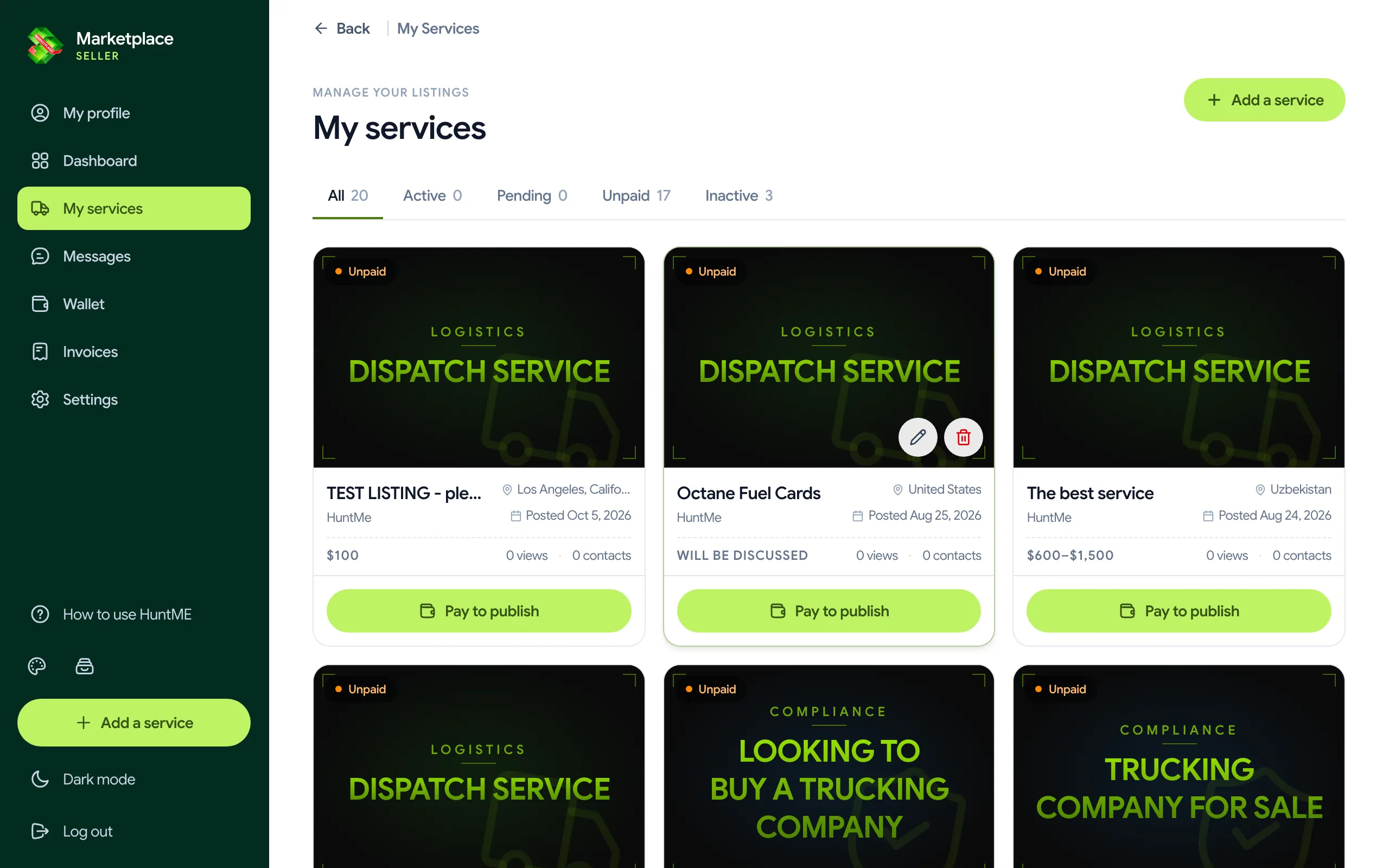
My Services is where you manage the listings you have already created.
- Open My Services in your workspace to see your listings and their current statuses.
- Use the status tabs to find active, pending, unpaid, or inactive listings.
- Open a listing’s edit action to update its details. Check Wallet when an action requires credits.
Your account essentials
Sign in to access these pages. Use the notification bell to check your latest updates.
Continue conversations with buyers and providers.
Profile & settingsKeep your profile current. Open Settings to manage account preferences.
WalletCheck your credit balance and add credits when needed.
A few common questions
Do I need an account to browse?
You can browse services, view company profiles, and use Hunter AI without signing in. Sign in to message a seller, reveal contact details, or manage your account.
When do I need credits?
Publishing a new listing uses credits. Review the cost shown before publishing, and check Wallet for your balance. Messaging sellers and revealing their contact details are free.
Why is my listing not visible yet?
Check its status in My Services. A pending listing is awaiting review, an unpaid listing needs payment, and an inactive listing is not currently active. Contact support if you need help with a status.
Still need a hand?
Tell us what you’re trying to do and where you got stuck.